

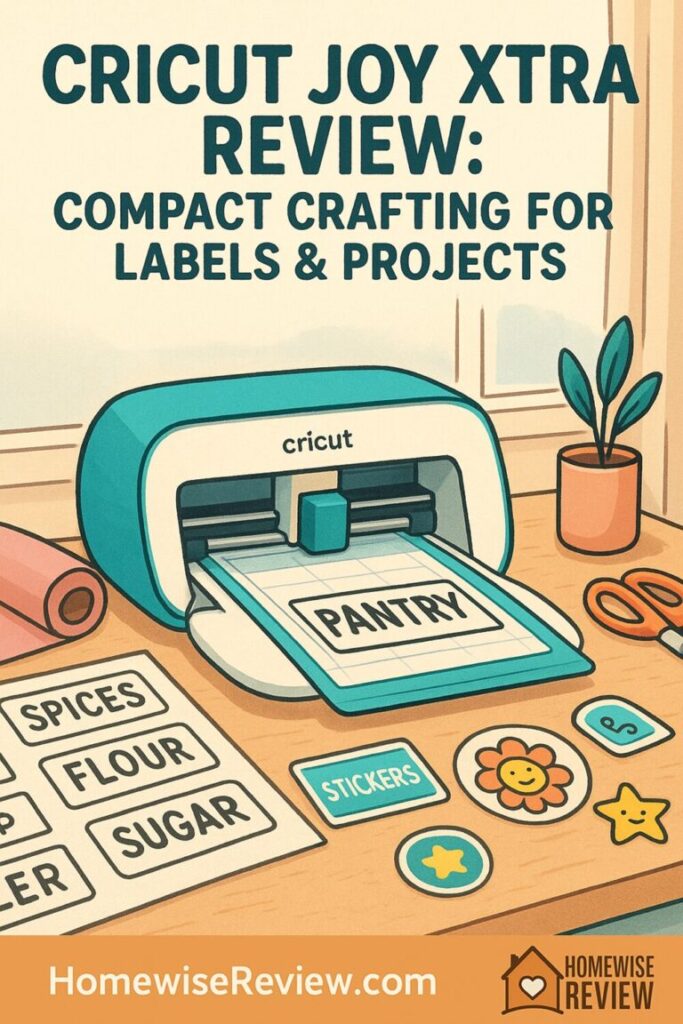
Want to make polished labels, stickers, and cards without giving up half your desk to a giant cutting machine? Cricut Joy Xtra promises full sheet cutting in a compact body built for everyday projects and home organization.
🆕 2026 Product Update
In 2026, the Cricut Joy Xtra still makes a lot of sense for households focused on labels, stickers, cards, and Print Then Cut projects without dedicating permanent space to a cutter. Cricut’s lineup has expanded, but this model remains the sweet spot if you want full-letter-size capability in a compact footprint rather than stepping up to a larger machine. If you’re primarily cutting thicker materials or chasing faster batch production, it may be worth comparing against newer, larger Cricut options—but for everyday organizing and personalization, it continues to be an easy recommendation.
Overview
Cricut Joy Xtra sits between the tiny original Joy and Cricut full size machines, giving you a compact cutter that can handle full page projects. It works with letter size materials on a mat and with Cricut Smart Materials on a roll, so you can make labels, stickers, cards, decals, and iron on designs without dedicating an entire room to crafting. For many homes, it is a tidy, all in one answer to everyday personalization and organizing.
The biggest upgrade over the original Joy is width. Instead of being limited to narrow projects, Joy Xtra can cut across an entire sheet of paper or sticker paper, and it supports Print Then Cut so you can print designs on a home printer and let the machine cut them out. Add in Bluetooth, a guided app, and a footprint closer to a shoebox than a sewing machine, and you have a tool clearly aimed at busy households, teachers, and casual crafters.
Who it is for
Joy Xtra shines for people who care more about labels, stickers, and small decor than about heavy duty materials. If you want to label every bin in your pantry, personalize school supplies, add names to water bottles, and occasionally make cards or party favors, this machine fits that list almost perfectly. It is especially appealing if your crafting space is the kitchen table and everything has to pack away quickly.
It is also well suited to beginners and tech comfortable parents. The Cricut Design Space app walks you through simple label templates, monograms, and card designs, and you can start with pre made projects without drawing anything from scratch. If you have an inkjet printer, Joy Xtra adds the ability to print full color stickers or planner sheets and cut them cleanly, which is a big upgrade over hand cutting.
Joy Xtra is not ideal if you dream about cutting wood, chipboard, thick leather, or large wall decals in a single pass. It is also not the best match if you want high volume production for a big Etsy shop or expect instant, one button text labels the way a handheld label maker delivers. Those needs are better suited to a larger Cricut or a dedicated label printer.
How it feels and performs
Physical setup is straightforward. The machine is light enough to lift with one hand and small enough to slide onto a bookshelf when you are done. Out of the box, you plug in the power cord, pair it over Bluetooth with a phone, tablet, or computer, and sign into Cricut Design Space. Expect your very first project, including app updates and a quick tutorial, to take around 20 to 30 minutes.
The build feels solid for the size. The lid opens smoothly, the material guides are firm, and the mat feeds in with a steady pull. During cutting, the noise level is noticeable but not jarringly loud, similar to a quiet electric toothbrush rather than a power tool. You can comfortably run it in the evening in a nearby room without waking kids.
On vinyl and label materials, cut quality is crisp. Fine text and thin outlines on pantry labels come out clean as long as you use fresh materials and a reasonably sticky mat. Print Then Cut performs well once you calibrate it in the app, and the sensor reads registration marks reliably under normal lighting. For stickers, Joy Xtra can do full sheets of kiss cut designs or deeper cuts for individual die cut stickers, which makes it a great fit for planners, teacher rewards, and small batches of custom decals.
Paper and card projects are also strong, as long as you stay within the intended weight range. With the compatible card mat, folded cards with cut out designs look smooth and professional, and simple shapes in cardstock cut quickly. Very delicate script fonts in thin paper can tear if you go too small, but dialing back the complexity or using slightly heavier paper fixes most issues.
The Design Space software experience is similar to other Cricut machines, which is a positive if you have used one before and a mild learning curve if you have not. There is a generous library of free shapes and fonts, plus more through the optional Cricut Access subscription. You can upload your own images, use your system fonts, and save custom label templates for repeat projects. The main trade off is that you need a reliable internet connection for the app to feel smooth, and the interface has more options than a simple label maker, so the first few sessions are about learning where everything lives.
How to use it for best results
For labels and stickers, start by measuring the surface you want to label and choosing a material that matches how it will be used. Pantry containers and bins do well with permanent vinyl or writable label paper, while school supplies and water bottles are better with permanent or water resistant vinyl. In Design Space, you can pick a ready made label project, swap in your own text, and resize it to fit your dimensions before sending it to cut.
Material prep is where a lot of success happens. For mat based cuts, press your paper, sticker sheet, or vinyl firmly onto the mat and use a scraper or brayer to push out air bubbles, especially near the edges. For Smart Materials, line the edge up with the machine guides and support longer rolls so they do not drag and skew. When in doubt, run a small test cut in a corner of the material to confirm that the default pressure is right before committing a full sheet.
After cutting, take a few seconds to weed and finish your pieces with care. Peel the mat away from the material instead of lifting the material off the mat, which helps prevent curling. Keep a basic set of tools on hand such as a weeder, scraper, and fine tip scissors, and replace the fine point blade once you notice fuzzier cuts on paper or vinyl. For Print Then Cut projects, use bright but not glossy paper and avoid very low light, since the sensor reads contrast around the printed registration marks.
Pros and cons
Every cutting machine is a trade off, and Joy Xtra is no exception. Here is how its strengths and weaknesses balance out for labels and everyday projects.
- Compact footprint fits small desks, shelves, and shared spaces
- Wider cutting area than the original Joy for full page labels and stickers
- Print Then Cut support for custom stickers and planner sheets
- Matless cutting with Smart Materials for long labels and decals
- Beginner friendly app projects and step by step guidance
- Excellent for home organization, school, and quick gift projects
- No required subscription, and it works with your own fonts and images
- Limited to lighter materials such as vinyl, iron on, cardstock, and sticker paper
- Narrower and slower than larger Cricut machines for big or frequent projects
- Design Space has a learning curve and works best with solid internet access
- Longest, matless cuts rely on Cricut specific Smart Materials
- Costs more than basic handheld label makers that only print simple text
- Not ideal for high volume production for a larger craft business
Final verdict
Cricut Joy Xtra is a thoughtful step up from the original Joy and a very capable little workhorse for labels and medium sized projects. If you are tired of crooked scissor cuts, generic label tape, or paying for custom Etsy stickers, it offers a big jump in polish without demanding a full craft room or steep learning curve. For many homes, classrooms, and dorm rooms, it hits a sweet spot between power and footprint.
You should feel confident choosing Joy Xtra if your project list is mostly labels, stickers, cards, and moderate sized vinyl or iron on designs. If you know you will want to work with heavy materials or large wall to wall decals, a bigger Cricut will serve you better. For everyone else who wants compact crafting for labels and projects, Joy Xtra is easy to recommend.
See also
If you suspect you will outgrow a compact machine, compare it with our full size option in the Cricut Maker 4 review before you decide.
- Explore hands on recommendations for kids with our guide to the best toys for creative play and learning.
- Find age appropriate tabletop fun in our picks for the best board games for toddlers.
- Treat the family after craft time with ideas from our roundup of the best home ice cream makers.
- Create a cozy craft friendly bedroom atmosphere with our favorite kids night lights.
FAQ
How is Cricut Joy Xtra different from the original Cricut Joy for label making?
Joy Xtra has a wider cutting area, so it can handle full letter size sheets of label paper, vinyl, and sticker paper instead of just narrow rolls and strips. It also supports Print Then Cut, which lets you print full color label designs on a regular printer and then have the machine cut around them. The original Joy is more limited in both width and features, so Joy Xtra is much more flexible for serious label projects.
Can Cricut Joy Xtra replace a traditional label maker in my home or office?
For highly customized, good looking labels with icons, fonts, and colors that match your style, Joy Xtra can absolutely stand in for a traditional label maker. It is slower and less grab and go than a handheld label printer, since you design labels in the app and load materials, but the results look far more polished. Many people end up keeping a simple labeler for quick utility labels and using Joy Xtra when they care about appearance.
Do I need a Cricut Access subscription to make projects with Joy Xtra?
No, a Cricut Access subscription is optional. You can use Joy Xtra with the free version of Design Space, upload your own images, and use fonts that are already on your computer or device. Access mainly adds a large library of ready made projects, images, and fonts, which can be convenient but is not required for label making or custom designs.
What materials can Cricut Joy Xtra cut for everyday projects?
Joy Xtra is designed for light to medium weight materials that most households use. That includes adhesive vinyl, iron on vinyl, stencil vinyl, cardstock, copy paper, sticker paper, and Cricut specific materials such as Infusible Ink sheets and writable labels. It cannot cut wood, thick leather, acrylic, or very dense chipboard, so those projects still belong to larger machines or other tools.
Is Cricut Joy Xtra a good choice for a small sticker or label business?
Joy Xtra can absolutely handle small runs of stickers, planner sheets, and custom labels, especially if you are just starting or only take a few orders per week. Print Then Cut makes it easy to create full color designs with a home printer and finish them with clean cuts. If your business grows into high daily volume or needs very large designs, you may eventually want to add a larger, faster machine, but Joy Xtra is a solid entry point.
As an Amazon Associate, we earn from qualifying purchases made through links on our site.